Contents and sources 5 sections
Key points
- If all you have is a subject line, check which IMAP folders are set to download.
- Quit Thunderbird before copying a profile folder larger than 2 GB.
Pick a message you haven’t opened in years
Imagine handing over your old laptop tomorrow. Which email would you want to take with you? A family photo someone sent years ago makes a good test. On paper, jot down the date, subject and folder. Pick a familiar contact from your address book, too. Use an attachment you trust so you can open it safely during the drill.
These steps are for desktop Thunderbird. Open Account Settings and check the account type under Server Settings. It should say IMAP. Your provider still handles incoming and outgoing mail. What you’ll keep under your own control is a readable offline copy. Decide where to store it, and sign in to your own operating system account if you share the computer.[1]
Where does a picture in an email come from?
Open a newsletter with an empty space where the banner should be. Check the notification above the message. Thunderbird blocks remote content by default. Fetching a picture from a server chosen by the sender can reveal when you opened the message, whether your address is active and your approximate location based on your IP address.[2]
Under Settings, open Privacy & Security and leave the option to allow remote content in messages unchecked. If you want to see a particular newsletter in full, use its notification bar to allow content just this once. For the backup test, choose a photo sent as an attachment. A link to a photo album will still just be a link when you restore the email.[2]
Download the body of the message
In Account Settings, open Synchronization & Storage and check whether Thunderbird keeps messages for this account on your computer. To download selected folders, open Advanced and inspect the list. If the photo is in a Trips folder under Family, expand Family and check Trips itself. Review age and size limits on the same settings page. An old message or one with a large attachment could fall outside the range you chose.[1]
Stay online until the download finishes. Disconnect, find the subject you wrote down and try reading the message and opening the photo. If all you see is a sender and subject, reconnect and check the folder’s sync settings. Even a message you can read offline can disappear on the next sync if it’s been deleted in webmail. While it’s still there, save a dated copy on a separate drive.[1]
Choose a backup method based on the 2 GB limit
From Thunderbird’s menu, open Tools, then Export. Follow the link to the current profile folder and check its size in your file manager. The profile holds locally stored mail, address books and account settings, and may contain saved passwords. Have an encrypted external drive that you can unlock ready before copying that folder off the computer.[3][4]
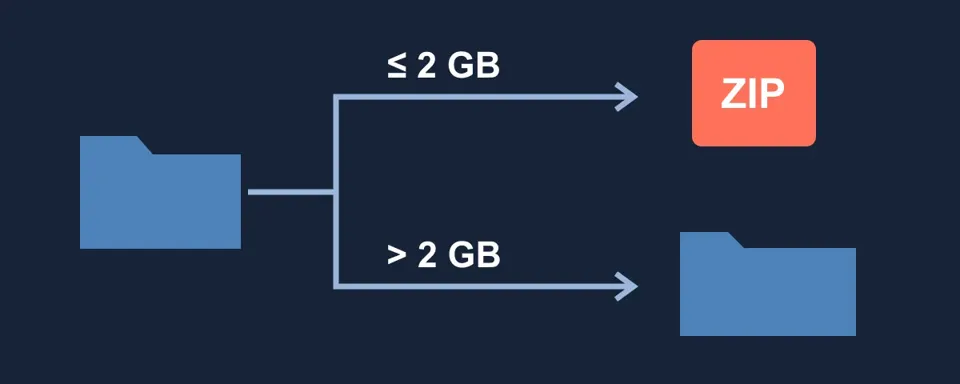
The built-in exporter supports backup ZIP files up to 2 GB. For a profile within that limit, use Export, choose the external drive and give the file a dated name. For a profile over 2 GB, leave the file manager open and quit Thunderbird completely. Go up one level and copy the whole profile folder into a new dated directory on the external drive. Keep the previous working backup.[3][4]
Restore the backup in a separate account, offline
Use a spare computer or a fresh operating system account on the same machine, with desktop Thunderbird installed. Disconnect from the network first so the mail server can’t quietly supply anything missing. Start the empty copy of Thunderbird and select Tools, then Import. For an exported ZIP, choose the file option. For a folder copy, choose to import from another Thunderbird installation, then select the backed-up profile folder. Review the mail, address books and settings selected before starting the import.[5]
Take out your note. Can you read the message, open the family photo and find the contact while still offline? Record the test date alongside the backup. If the original computer also lacks the message offline, revisit its downloads. If the original reads fine but the restored copy is missing mail, check which profile you copied and whether you selected mail during import. Your test covers the items you opened. Before wiping the old computer, try a message from each of the other folders you care about.
BlockBlah prepared this guide with AI assistance using Mozilla’s support documentation. It received no sponsorship.
Sources & further reading
(5)
When checking a claim, compare the source date, measurement period and conditions. Some linked pages change over time.
For information and education, not investment advice. Crypto assets are volatile. Verify independently.